Getting started
Sign in, learn the workspace, choose the right path for your role, and complete your first day with confidence.
This guide is the best place to start if you are new to the platform.
It is written for:
- sales and revenue users
- marketing users
- support and customer-success users
- training and delivery teams
- operations and admin users
- anyone who needs to understand how the modules fit together
If you already know the product area you need, jump to Role-based guides, End-to-end tutorials, or Platform flows.
Sign in and register
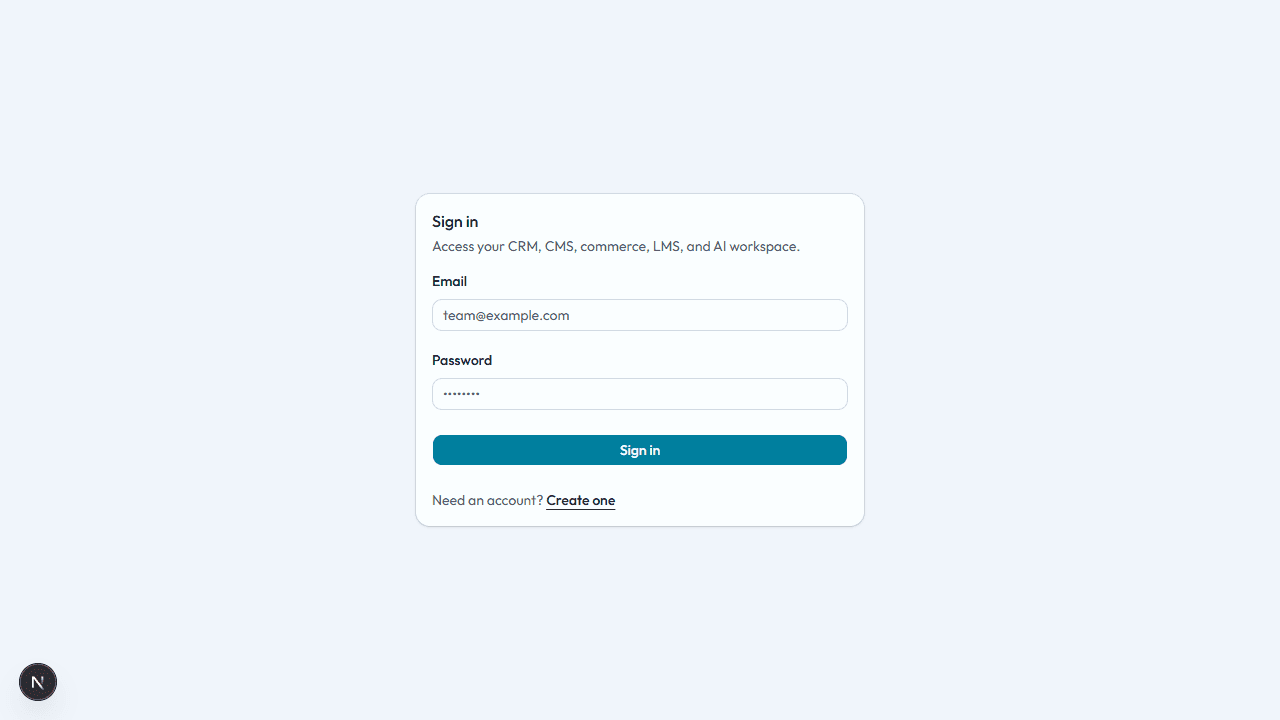
- Open the sign-in page your administrator shared.
- Enter your email and password, or use single sign-on if your organization enabled it.
- If self-registration is available, use Register. If it is not, ask an administrator to invite you.
If you cannot sign in, see Troubleshooting.
After a successful sign-in you land on the home dashboard with the workspace sidebar.
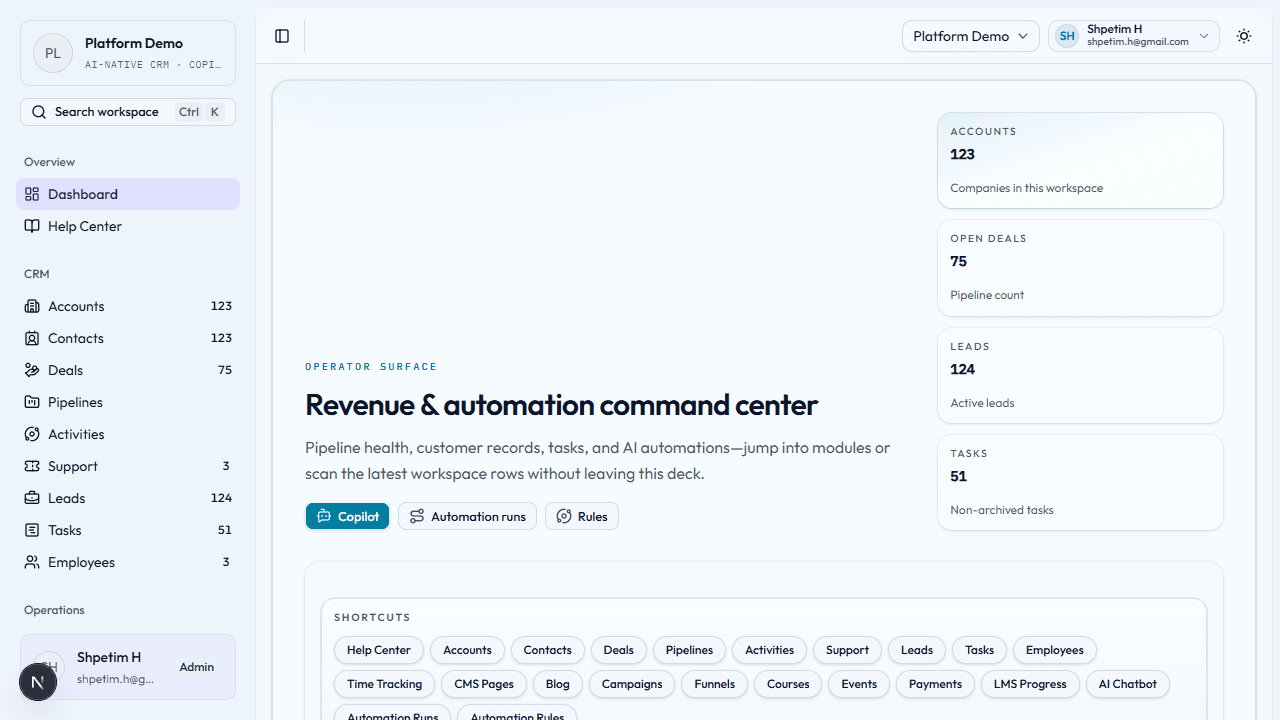
Understand the workspace layout
The product is organized by job to be done:
- CRM for leads, contacts, accounts, deals, support, tasks, and customer history
- Marketing for campaigns, funnels, landing pages, and public capture
- Products and commerce for offers, events, and payments
- Learning for delivery, learners, lessons, and certificates
- Operations for internal time and delivery effort
- AI for copilot help, automation rules, and automation runs
- Administration for workspace setup and access
On most pages, you will see the same pattern:
- A page header with the title and a short explanation.
- A primary action such as creating, logging, enrolling, or editing.
- A summary area with counts, status cards, or KPIs.
- A table, board, or detail view where the real work happens.
The big picture
The platform is designed as one operating system for the customer lifecycle:
- Marketing brings in demand.
- CRM qualifies and converts that demand.
- Sales works deals, tasks, sequences, forecast, and reporting.
- Commerce records payments for what was sold.
- Learning and Operations help deliver what the customer bought.
- Support handles issues and keeps context attached to the customer record.
- AI and automations help teams act faster and keep work moving.
Your first 30 minutes
First 5 minutes
- Open Workspace navigation to learn the shell.
- Scan the sidebar and note which modules your organization enabled.
- Open one list page you expect to use often, such as CRM, Marketing, or Operations.
Next 10 minutes
- Open a real record from a table or board.
- Read the record detail page and notice how related items connect.
- Check whether your team uses activities, notes, tasks, sequences, or approvals.
Next 15 minutes
- Follow the tutorial that matches your role from Role-based guides.
- Read one cross-module walk-through from End-to-end tutorials.
- Save Platform flows for a visual reference when you need to understand handoffs.
Choose your path
If you work in sales or CRM
Start with CRM, then read Role-based guides.
If you work in marketing
Start with Marketing, then read End-to-end tutorials.
If you work in support or customer success
Start with CRM and focus on Support, Customers, and Activities. Then read Role-based guides.
If you run delivery, learning, or training
Start with Learning and Products and commerce.
If you work in finance-adjacent, operations, or people management
Start with Operations, then review Products and commerce and CRM if you need the commercial context.
If you manage automations or AI-assisted work
Start with AI assistant, then review Platform flows.
If you are an administrator
Start with Admin settings, then read Account and access.
First-day checklist
- Confirm you can sign in and see the expected modules.
- Open the one or two pages you will use most often.
- Identify which records your team treats as the source of truth.
- Learn whether your team expects you to log activities, notes, tasks, or all three.
- Confirm who approves risky changes or automations.
- Read the role guide that matches your job.
- Read at least one end-to-end tutorial so you understand upstream and downstream handoffs.
Recommended next guides
- Working with the platform for the operating model across modules
- Role-based guides for day-to-day routines by role
- End-to-end tutorials for complete walkthroughs
- Platform flows for visual diagrams
- Workspace navigation for search, shortcuts, and help
Need a human?
Contact your workspace administrator, team lead, or internal support channel if:
- you cannot access the right modules
- the data you need is missing
- you are unsure which workflow your team expects
- a record or automation appears wrong
This Help Center explains how the product works, but your organization may still have internal process rules on top of it.