CRM
Manage inbox work, leads, accounts, contacts, deals, sequences, forecast, reports, support, tasks, and employees in one place.
CRM is the center of customer and revenue work: companies, people, opportunities, follow-ups, and support tickets link together so everyone sees the same story.
Before you start
- Create accounts for companies you sell to or support.
- Add contacts and link them to accounts.
- Set up pipelines so deals have clear stages.
- Use activities for what happened and tasks for what must happen next.
- Notes — On account, contact, deal, lead, and customer hub detail pages, use the Notes card to add free-form context (also available via
/api/notes). They are separate from the activity timeline. When CRM is enabled, use Quick note in the top bar or open the command palette (Ctrl/⌘+K) and choose Quick note to attach a note to a record without opening its page first.
Inbox
Path: CRM → Inbox (/crm/inbox)
Use Inbox as the daily command center for follow-up work.
- Start on the Tasks tab to review open work by due date and priority.
- Use the right-side preview to mark a task complete without leaving the page.
- Use Create task for new follow-up, Log note for free-form context, and Log call, Draft email, or Log meeting when you want a linked communication record without leaving Inbox.
- Switch to Activity when you want a quick recent-history scan before the next customer touch, then use the same quick-log actions against the selected record.
Leads
Path: CRM → Leads (/crm/leads)
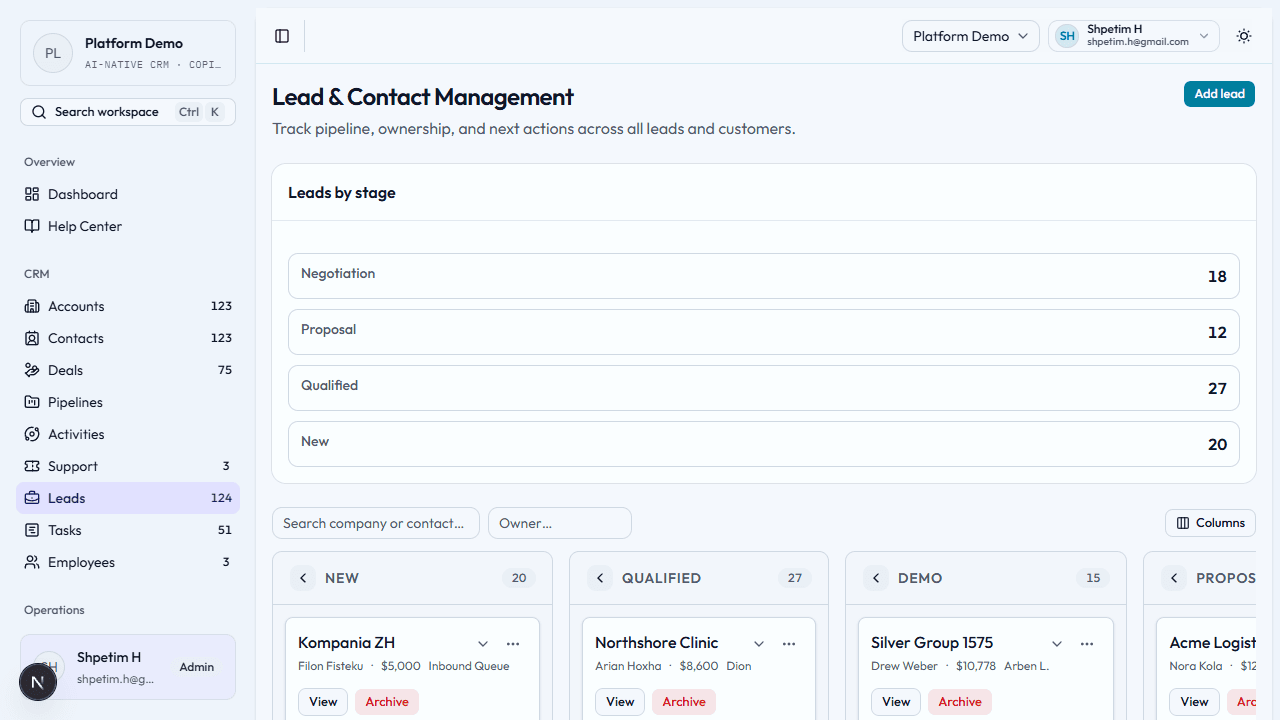
Capture demand that is still being qualified.
- Open the list or board to see stage, owner, and value.
- Use Add lead (or equivalent) for company, contact, stage, owner, and amount.
- Open a lead’s detail page to edit, add context, or convert when the opportunity is real.
- Convert only when you are ready to create the related CRM records downstream (accounts, contacts, deals—depending on your workflow).
- Use Review duplicates to open
/crm/leads/duplicateswhen multiple active leads share the same deterministic dedupe key. - Merge only into the primary lead. The merge flow moves linked tasks, activities, notes, submissions, and converted-deal source links, then archives the duplicate and records the action in the audit trail.
- Use Enrich lead on the detail page before conversion when you want a faster website/domain/industry summary without leaving the CRM.
- Open Routing rules from the leads workspace to manage automatic owner assignment for inbound and website-captured leads. Rules evaluate in ascending priority order and can match by source, campaign, landing page, email domain, or CRM segment.
- Use the lead detail Communication timeline actions to log calls, meetings, and email drafts with the lead context already attached.
- Use the AI score badge to prioritize which leads are hottest right now; the detail page also explains the deterministic reasons behind the current score.
- Use Suggest next actions on the lead detail page when the AI module is enabled. The CRM creates approval-gated Copilot suggestions tied to that lead and routes them into the shared AI approval queue before anything can execute.
- Use the lead detail Marketing attribution card to inspect first-touch, last-touch, influenced campaigns, and the recent touchpoint trail that came from public landing-page and CMS activity.
Accounts
Path: CRM → Accounts (/crm/accounts)
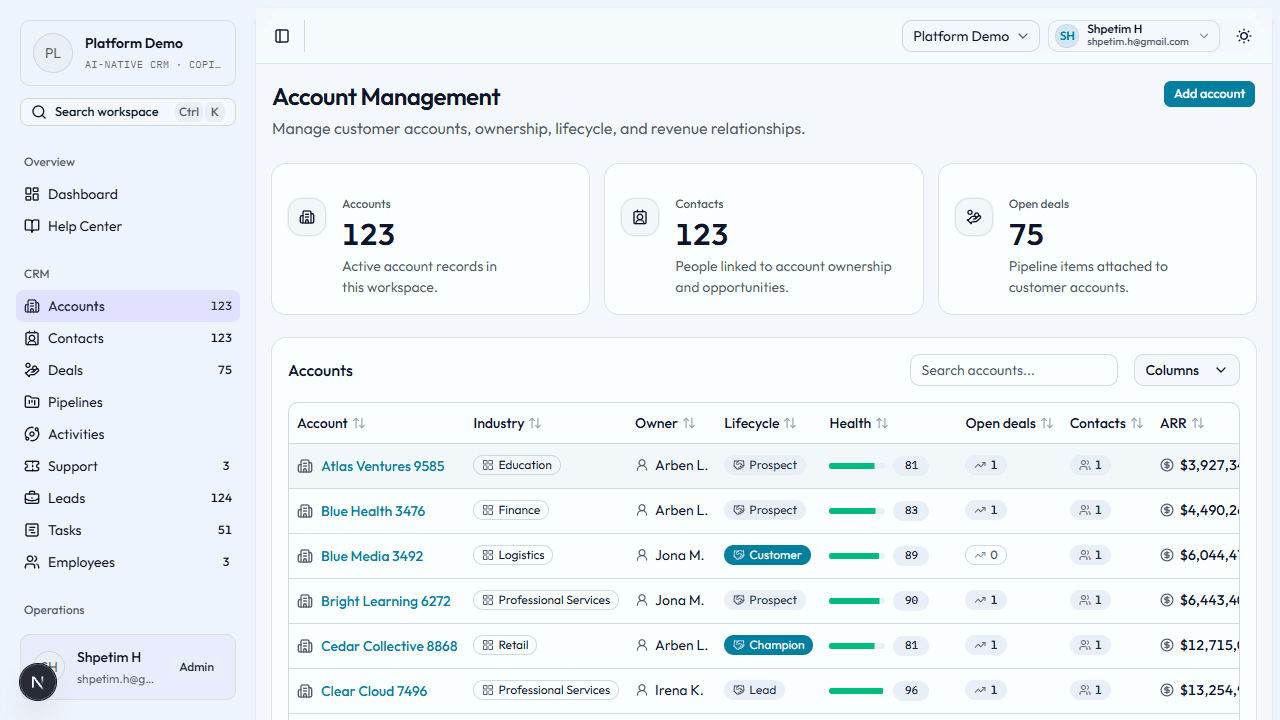
Accounts are company records that anchor contacts, deals, and history.
- Review existing accounts and summary counts.
- Add account with name, website, owner, lifecycle, segment, size, revenue, or health fields your form shows.
- Open an account detail page for profile, related contacts, open deals, and recent activity.
- Keep owner and lifecycle current so reporting and handoffs stay accurate.
Contacts
Path: CRM → Contacts (/crm/contacts)
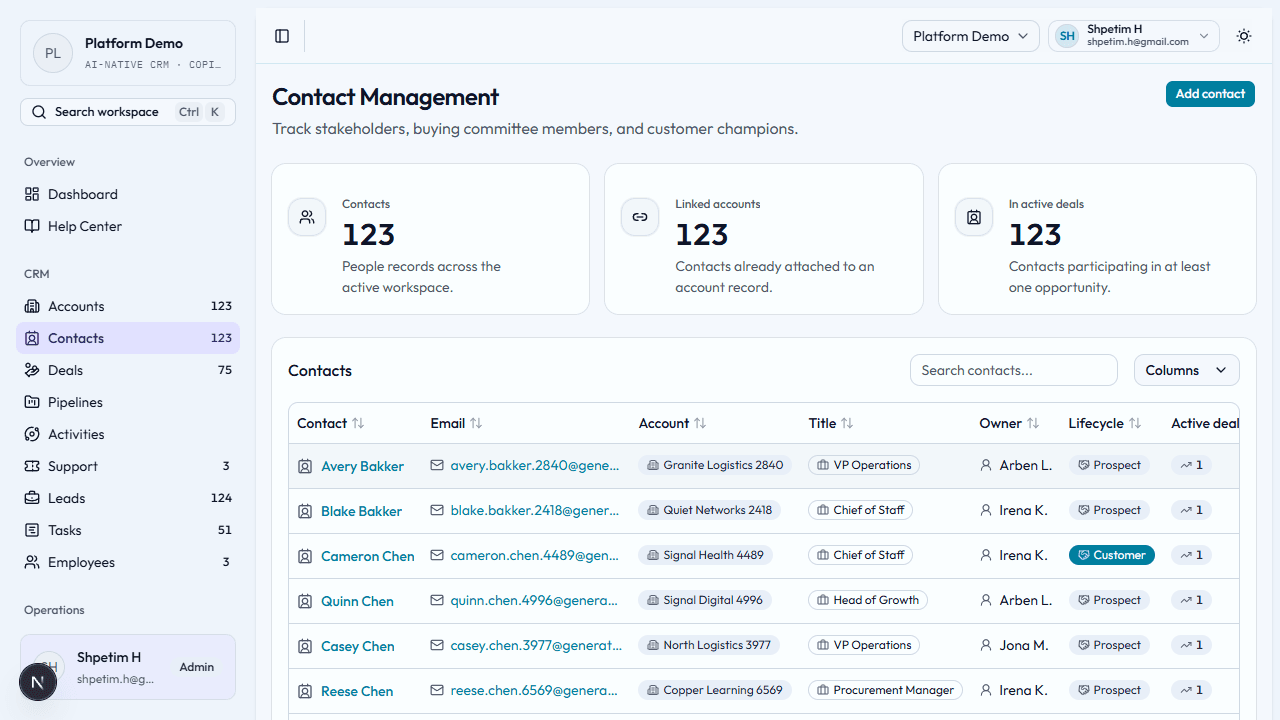
Contacts are people tied to accounts and deals.
- Review the list for owners and lifecycle.
- Create a contact and connect an account so the relationship is on the graph.
- Use the detail page for profile, deals, and activity.
- Link the right contact early—support and sales both benefit.
Deals
Path: CRM → Deals (/crm/deals)
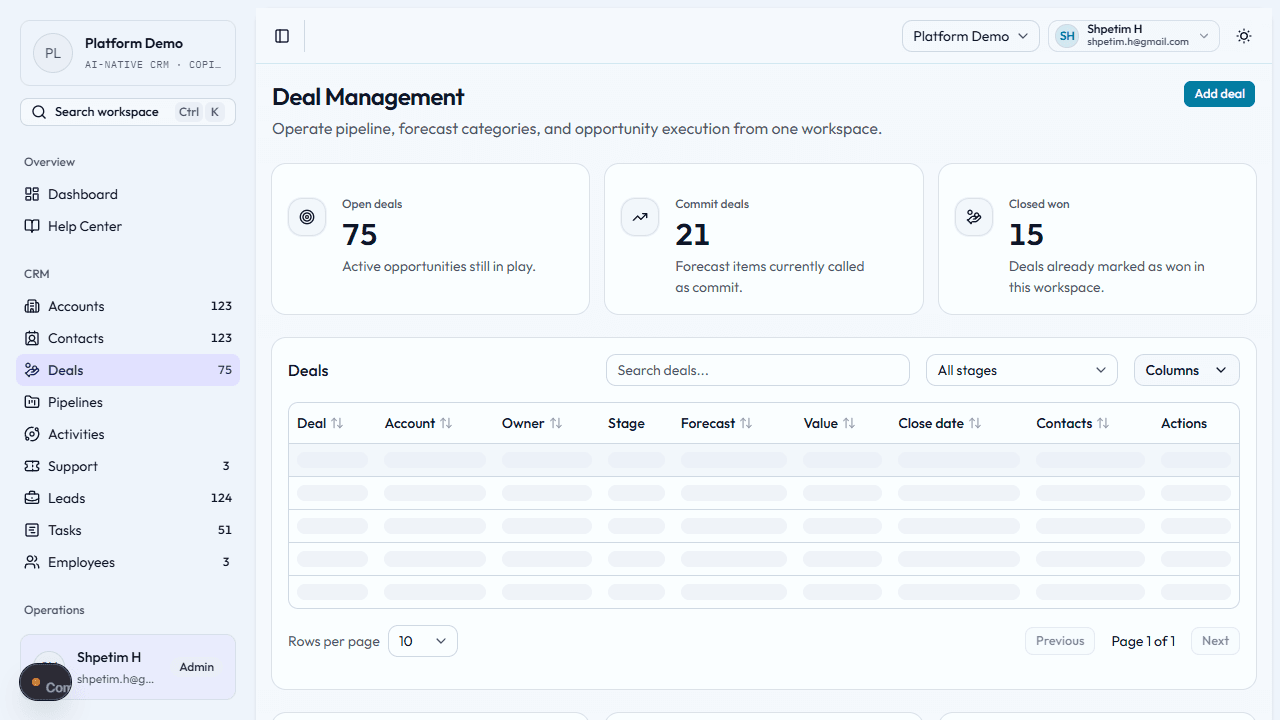
Deals are opportunities with amount, stage, and forecast context.
- Review the pipeline summary and open deals.
- Create a deal with account, contact, pipeline, and stage.
- Use the deal detail page for stage, contacts, and history.
- Update stage and dates as the opportunity moves—this keeps forecasts trustworthy.
- Use the saved views, smart filters, and Clear all controls on the deals table to keep repeatable inspection views for commit, owner, or stage slices.
- Watch the AI risk badge on deal cards and detail pages to see which opportunities are drifting; the detail view also shows the deterministic reasons behind the current risk score.
- On deal detail pages, use Suggest next actions to generate approval-gated Copilot guidance from the live deal context, then review or execute it from the linked CRM Copilot thread.
- Use the deal detail Activity Timeline actions to log calls, meetings, and email drafts with the account, deal, and primary contact already linked.
Pipelines
Path: CRM → Pipelines (/crm/pipelines)
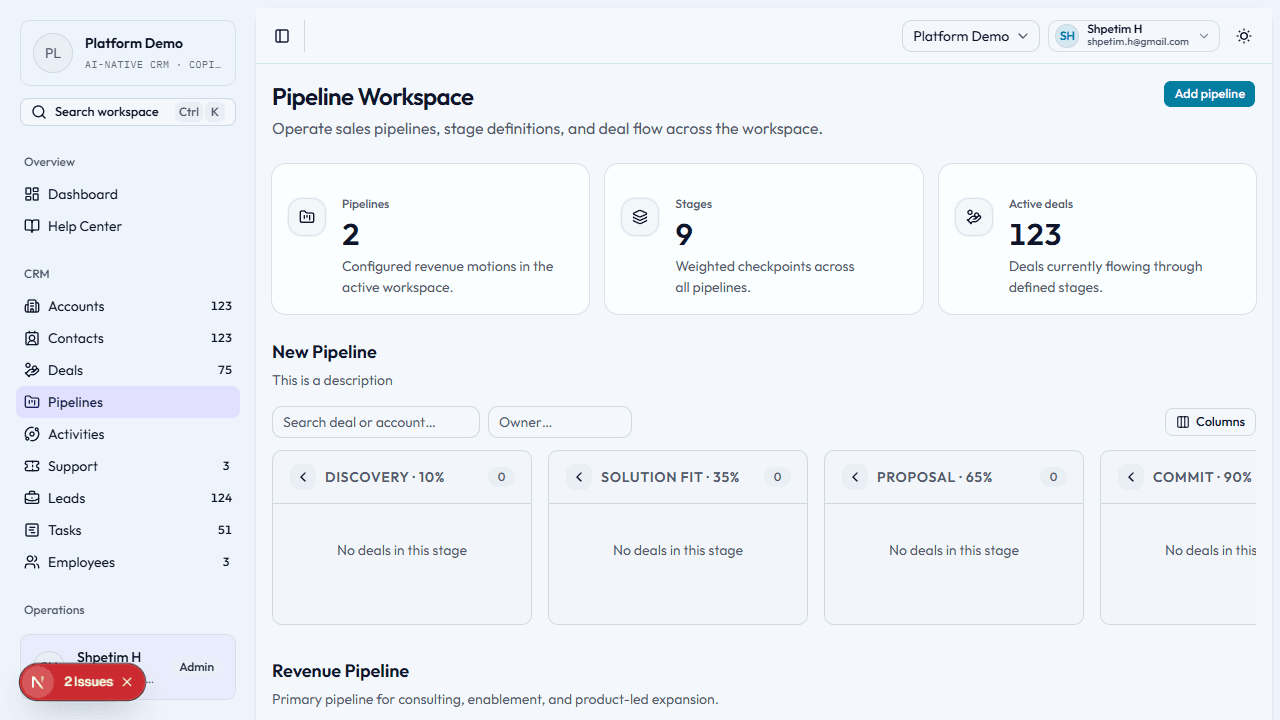
Pipelines define stages deals move through.
- See which pipelines exist and how deals are distributed.
- Add pipeline to create a new revenue motion with weighted stages.
- Edit pipeline to change name, description, or stage names and probabilities (only when you understand impact on reporting).
- Delete pipeline only after deals are moved or closed—the workspace blocks deletion while deals still use it.
- Understand stage names so the team uses them consistently.
- Use pipeline views in reviews and coaching.
Sequences
Path: CRM → Sequences (/crm/sequences)
Sequences turn repeated follow-up into a trackable operating play.
- Create a sequence from the main list, then open the detail page.
- Add steps with type, title, and delay so the sequence represents a real cadence.
- Use Enroll record to add a lead or contact.
- Use Advance on active enrollments to execute the current step and create the visible CRM proof (activity, and for task steps, a real task).
- Marketing campaigns can now auto-enroll newly created website leads into sequences through nurture rules, so some enrollments will originate from the marketing workspace before a rep touches the record manually.
Forecast
Path: CRM → Forecast (/crm/forecast)
Forecast is the weighted pipeline review workspace.
- Review open pipeline, weighted forecast, commit, and closed totals at the top.
- Filter by owner or pipeline when you want a narrower operating view.
- Switch between Rep view and Manager view to inspect deal detail or grouped owner rollups.
- Use the forecast bands and pipeline rollups during inspection meetings rather than rebuilding the math manually.
Reports
Path: CRM → Reports (/crm/reports)
Reports provide exportable CRM operating snapshots.
- Pick the reporting window for recent lead and support activity.
- Use Pipeline snapshot to inspect stage-by-stage deal value and weighted value.
- Use Lead volume and Support volume to spot acquisition or service pressure.
- Save the current report window from Saved reports when you want a repeatable pipeline, lead, or support snapshot.
- Export any table to CSV when you need a quick handoff, or use the saved-report Export CSV action when you want the server-generated export route.
Activities
Path: CRM → Activities (/crm/activities)
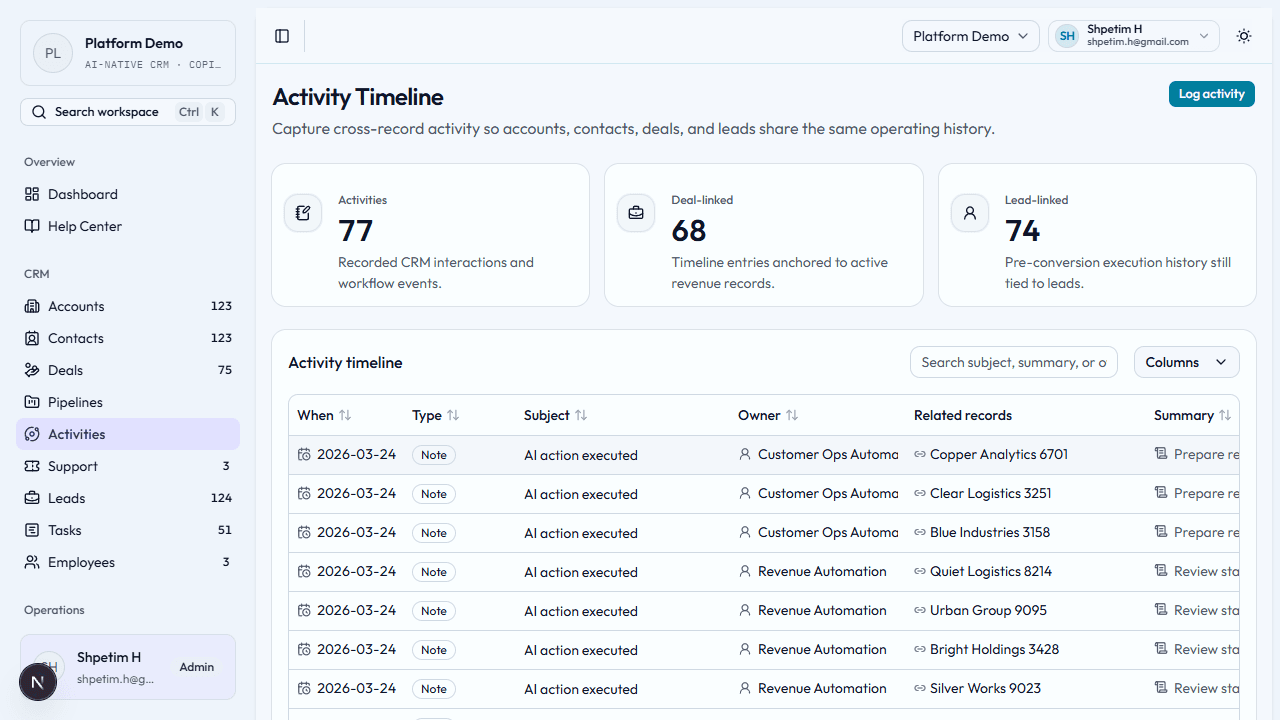
Activities are the timeline (notes, calls, meetings, emails, and similar).
- Skim recent history before logging to avoid duplicates.
- Log activity with type and clear context.
- Prefer the record-level quick actions for calls, emails, and meetings when you want deterministic templates and pre-linked context, then use the activities list to audit the resulting timeline.
- From the table, use View for a full read-only page, Edit to change fields and links, or Delete to remove a mistaken entry.
- Prefer activities for history and tasks for assigned work so the timeline stays readable.
Support
Path: CRM → Support (/crm/support)
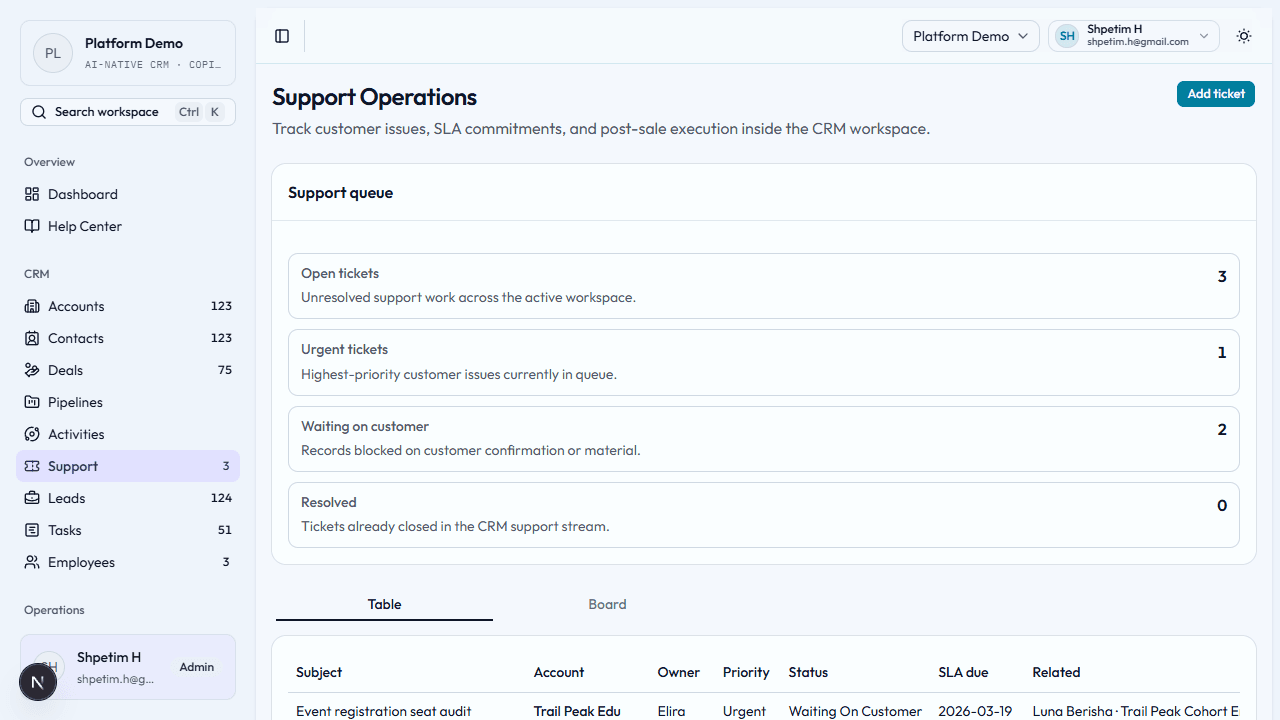
Support tickets track post-sale issues with priority and SLA-style fields.
- Use table or board view to see queue, owner, and status.
- Create a ticket linked to account and contact (and deal if relevant).
- Open a ticket’s detail page from the subject link or View; use Edit or Archive from the table or detail page.
- Use priority and status so the team knows what to do next.
- Watch the SLA state on the table and board to spot overdue or due-soon tickets quickly.
- Jump to the customer record when you need full commercial context.
Tasks
Path: CRM → Tasks (/crm/tasks)
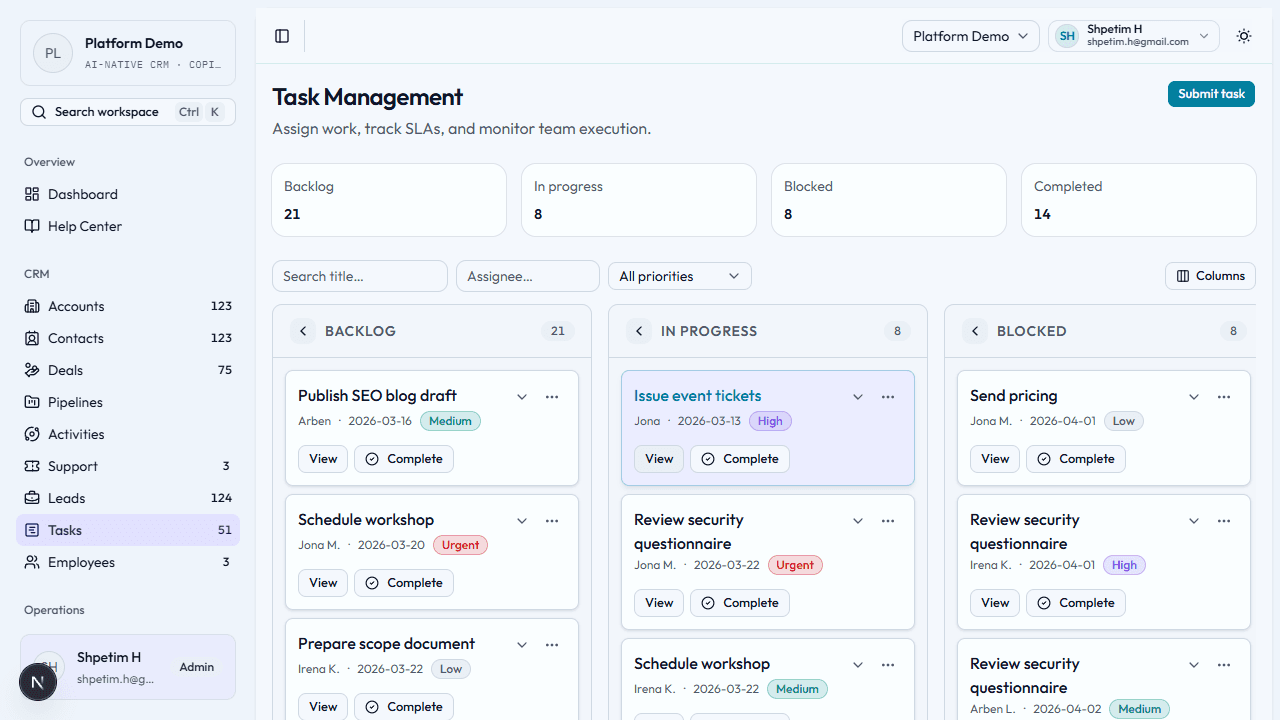
Tasks are assigned work with due dates and priorities.
- Review active work before adding more.
- Create a task with title, assignee, priority, due date, and linked records.
- Open task detail to update, complete, or archive.
- Close or archive finished tasks so boards stay meaningful.
Employees
Path: CRM → Employees (/crm/employees)
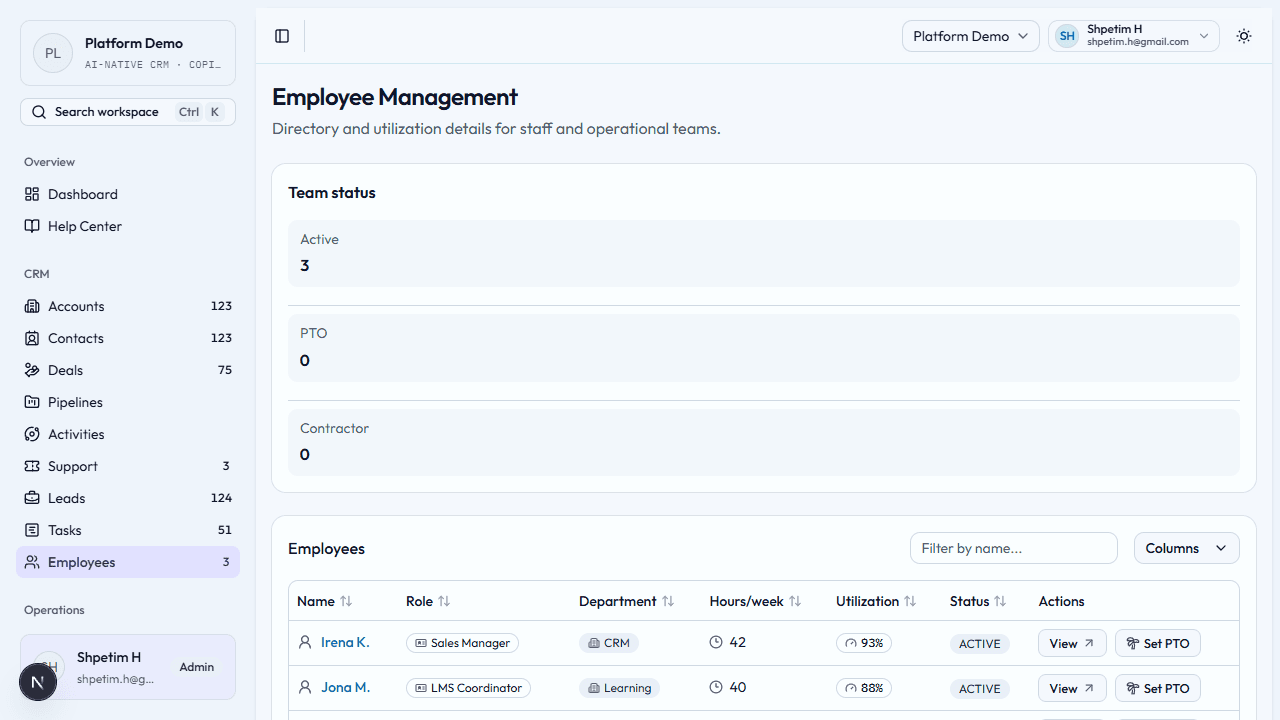
The employee directory supports delivery and operations alignment.
- Add employee to create a directory profile with capacity and role.
- Browse names, roles, and status.
- Open employee detail to edit fields or archive a profile; from the table use View, Edit, Set PTO, or Archive.
- Align with time tracking and task ownership so assignments match real people.
Customer views
Some workspaces include customer hub or customer detail pages that roll up support, payments, learning, subscriptions, health history, attachments, segments, onboarding playbooks, renewals, and expansion opportunities in one place.
- Open the customer hub when you need the full post-sale picture for an account.
- Use Onboarding to start a playbook for the customer, track step completion, and create linked CRM tasks when you want the rollout checklist reflected in task views.
- Review Renewals and Health History before escalation or commercial follow-up; owner/admin customer-success managers can run Recalculate health when the underlying signals change.
- Use Expansion to capture upsell and cross-sell ideas directly on the account instead of keeping them in notes.
- Use Suggest onboarding plan when the AI module is enabled to create approval-gated onboarding-run, kickoff-note, and kickoff-activity recommendations from the live customer record before anything executes.
- Use attachments to keep rollout plans, success briefs, or renewal docs close to the account, and check segments to understand which operating or audience groups the customer belongs to.
Related
- Marketing — where many new leads begin
- AI assistant — copilot and automations tied to CRM
- Lead qualification and conversion
- Daily pipeline review
- Sequences and follow-up
- Customer support and renewals