Workspace navigation
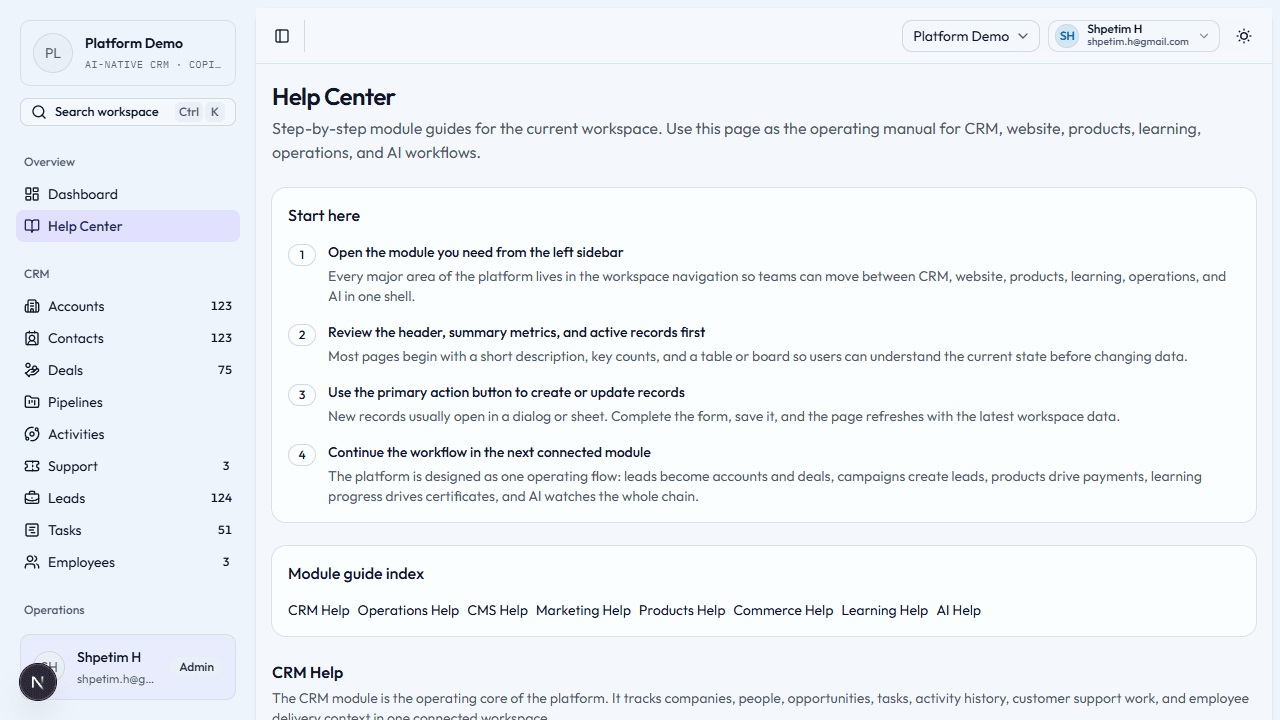
Use the sidebar, search, and in-app Help to move quickly through the platform.
Sidebar
The left sidebar lists the main product areas. Typical groups include:
- CRM — leads, accounts, deals, pipeline, support, tasks, and related views
- Marketing — campaigns, funnels, landing pages
- Website / CMS — static pages and blog
- Products and Commerce — catalog and payments
- Learning — overview, learners, course admin, analytics, progress, certifications
- Operations — time tracking
- AI — copilot, automation runs, rules, integrations
Exact labels depend on your workspace configuration.
Page layout
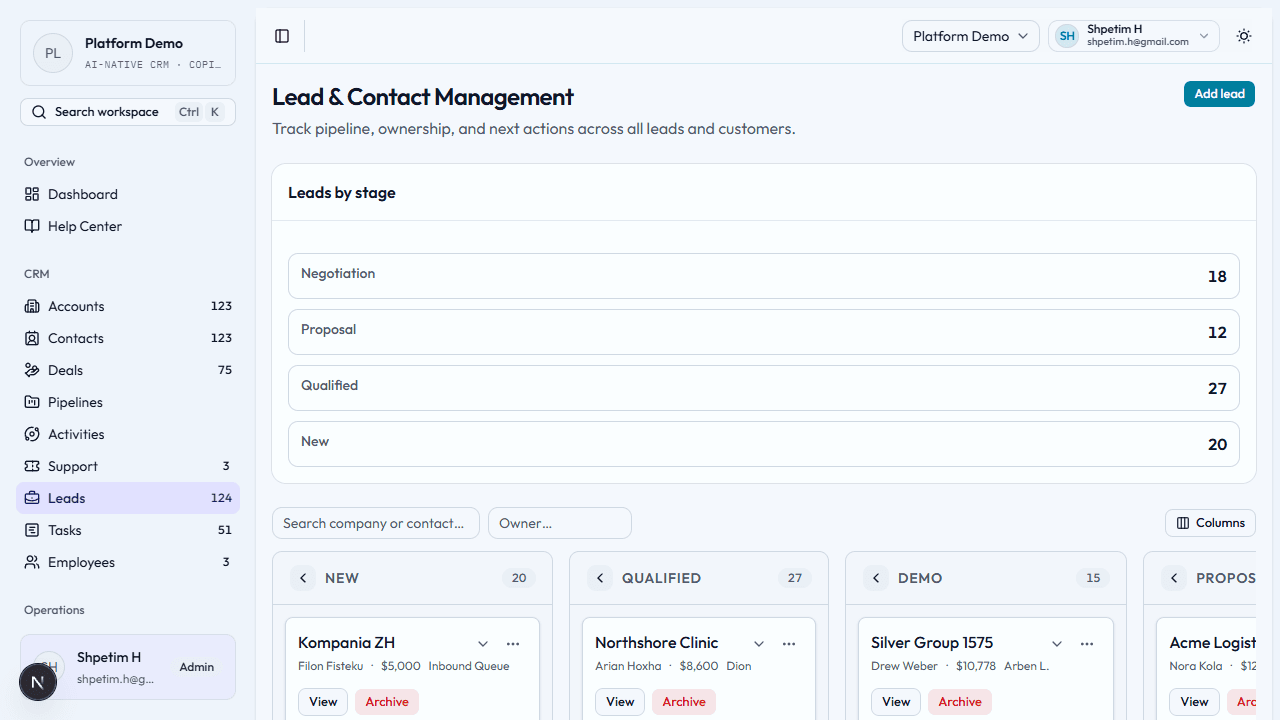
Most screens follow the same pattern:
- Page title and description at the top.
- Summary numbers or KPIs when the page tracks volume or status.
- A table or board listing records.
- Primary actions (add, create, publish) near the header.
Home dashboard (signed in)
After you sign in, the home screen is built for daily operations:
- Signals highlight pipeline, leads, and automation or workload—each card links to the right CRM or AI view when you want to act.
- KPIs show accounts, open deals, leads, and tasks; open a metric to go straight to that list.
- Workspace splits charts and a tasks / automations side panel; you can drag the divider to resize.
- Recent activity uses tabs so you can skim the latest accounts, deals, leads, or tasks without scrolling four separate tables.
- All modules stays collapsed until you choose Browse—for speed, use the command palette (keyboard shortcut shown in the sidebar) to jump anywhere.
- Create (plus button under search) opens Quick note, New lead, New task, and Log time (when your workspace includes CRM and/or Operations). The same actions appear under Create in the command palette, and small + controls next to CRM and Operations repeat the relevant items when the sidebar is expanded.
Search
If your workspace includes global search or command palettes, use them to jump to a route or find an action by name. Availability depends on how your organization configured the shell.
Boards and tables (CRM and elsewhere)
Where you see a Kanban-style board, you can often drag cards between columns to change status or stage—when in doubt, drag slowly and confirm the card moved. Tables usually support sorting and opening a row to see details.
Help inside the app
The Help area (while signed in) shows guides per module—for example CRM steps and Marketing steps—based on what is enabled for your workspace. It complements this Help Center at /docs, which is written for anyone who needs standalone documentation.