Marketing & website
Website and CMS
Create and publish static pages and blog posts, manage tenant website settings, and control public domains.
The CMS (content management) area holds website pages, blog posts, and your tenant’s website settings. Visitors see published content on your workspace’s public domains, and you can now control site name, homepage slug, navigation, footer content, and tenant domain readiness from inside the workspace.
Website settings and domains
Path: CMS → Website Settings (/cms/site)
- Open Website Settings to manage the public shell for your tenant website.
- Update site name, support email, homepage slug, default SEO fields, and footer legal copy.
- Use Primary navigation and Footer navigation to define the public links shown to visitors. Each line uses the format
Label | /path, so you can expose/courses,/events, blog, or key CMS pages without editing code. - Use the built-in storefront toggles to decide whether Courses, Events, and Blog should appear in the public shell.
- In Website domains, add platform-managed subdomains or customer custom domains.
- A pending custom domain does not go live until you activate it. Only an active domain can become the canonical domain for the tenant website.
- The canonical domain is the main public hostname your workspace should treat as primary.
Before you start
- Pick a URL slug before creating a page or post—it often becomes part of the public address.
- Prepare title, summary, body, and SEO fields so you can publish in one clean step.
- Confirm which hostname should be your canonical public domain before sharing links externally.
Static pages
Path: CMS → Static Pages (/cms/pages)
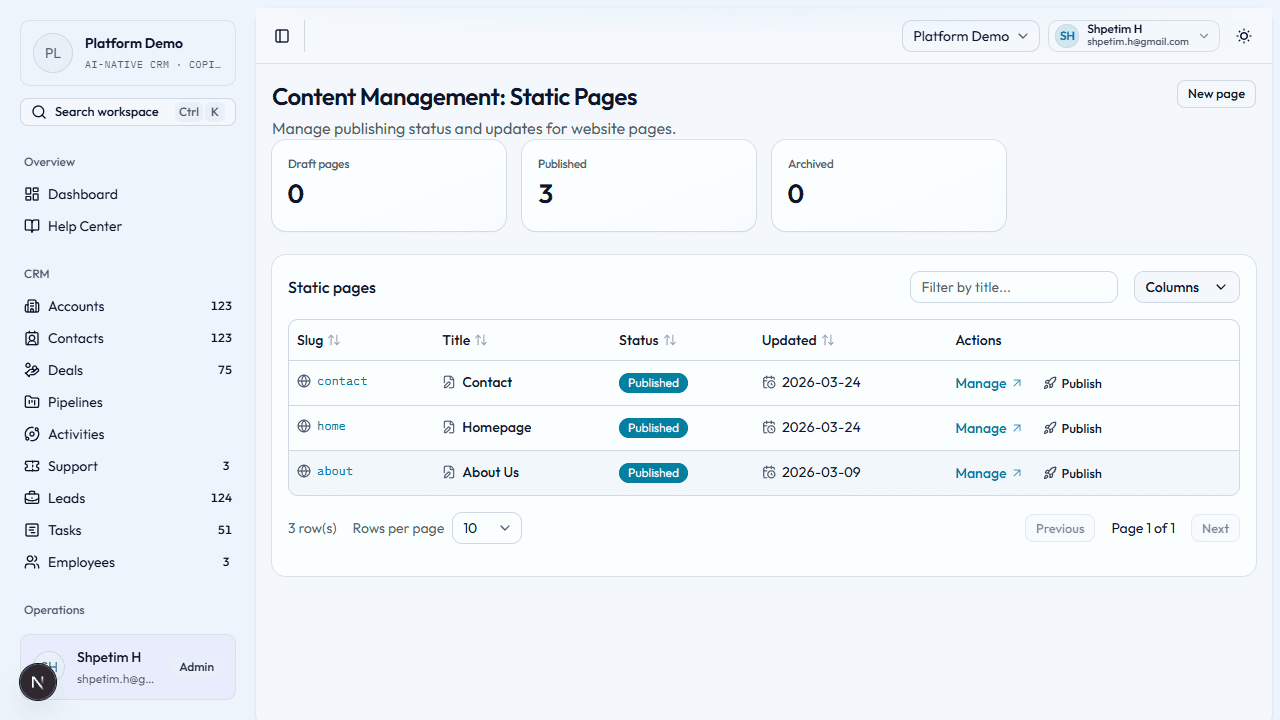
- Open Static Pages and check draft, published, and archived counts.
- New page — enter slug, title, summary, body, template, and SEO fields as shown.
- Open the page detail view to edit, review status, and publish when ready.
- In Commerce sections JSON, optionally add featured offer blocks so a CMS page can surface courses and events directly on the public website.
- In Public contact form, build the optional visitor form and save to show it on the live page (
/page/[slug]). Remove it anytime with Remove from public page. Submissions follow the same CRM path as marketing landing pages. - Double-check the slug before publishing—changing it later can break links.
Blog
Path: CMS → Blog (/cms/blog)
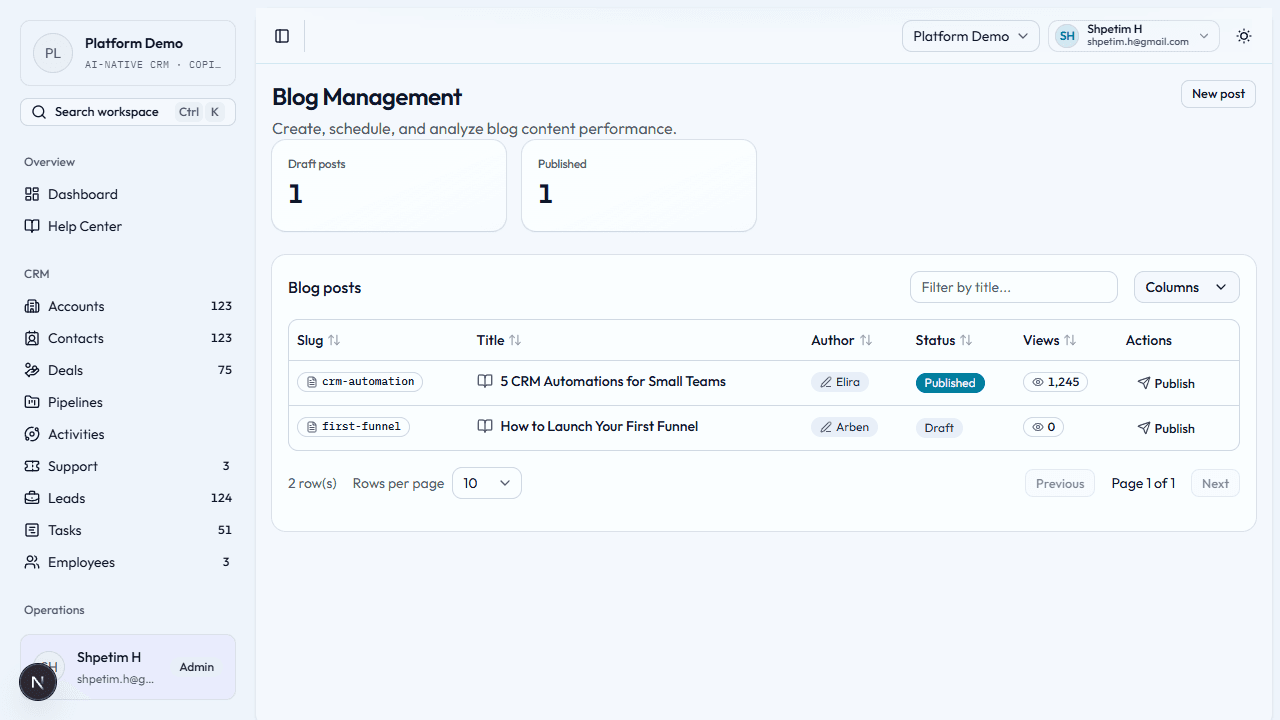
- Open Blog Management and review draft versus published workload.
- New post — slug, title, author, excerpt, body, and tags (often comma-separated).
- Use the list to see what is still draft.
- Keep excerpts and tags consistent so the blog is easy to browse.
Public URLs
Published pages and posts are available on routes such as /page/[slug] or /blog/[slug] on the active tenant hostname.
- Platform root hosts are separate from tenant hosts.
- Unknown or inactive public hosts should not resolve another tenant’s content.
- Tenant root (
/) uses the configured homepage slug from Website Settings.
Related
- Marketing — landing pages and campaigns
- Getting started
- Manage website content